 CrossLine
Guide
Short how-tos for each part of CrossLine. Labels in bold are what you'll see in the app.
1. Import a PDF chart
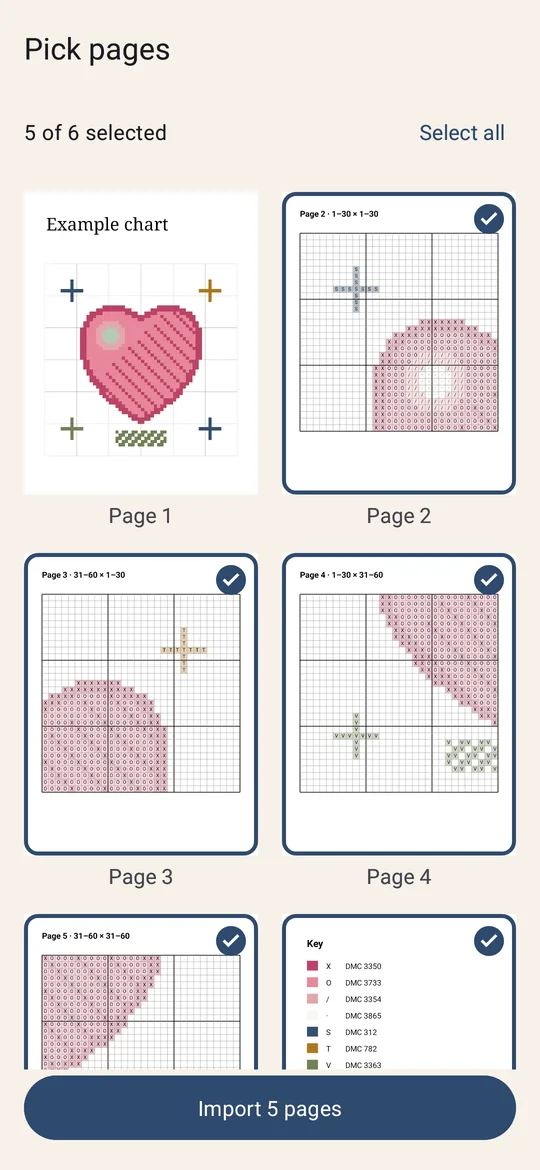
- On Projects, tap New pattern, then Choose PDF.
- On Pick pages, select the pages with the chart and the colour key (legend). Leave out covers and instruction pages.
- Tap Import N pages. CrossLine reads the grid, symbols, legend, half stitches, French knots and backstitch. Big charts take a little while.
CrossLine needs a PDF with real (vector) symbols, the kind made by charting software. Scanned or photographed charts can't be read. See the FAQ.
2. Arrange pages
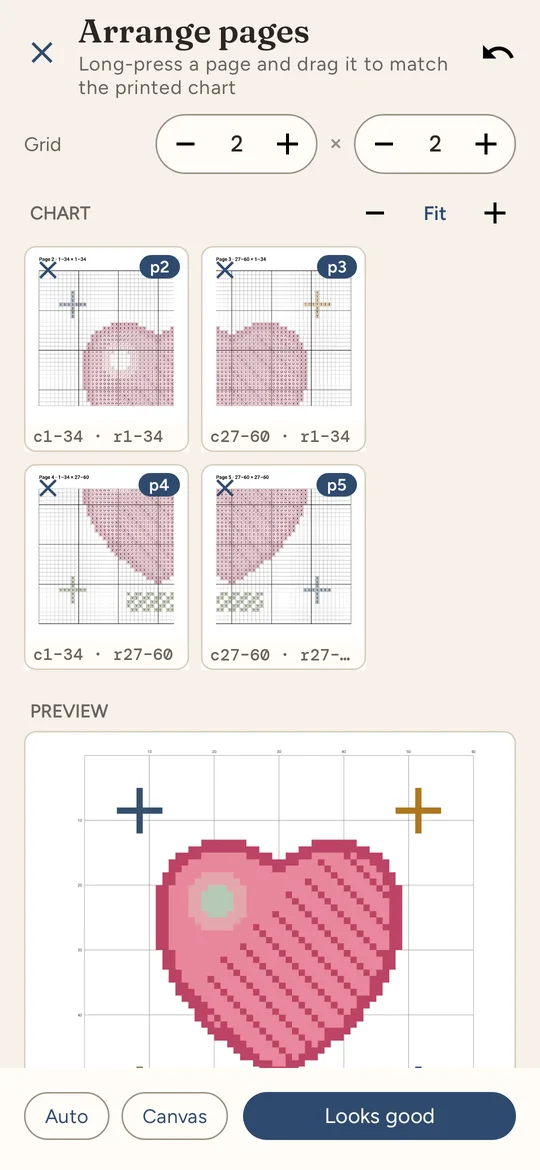
A chart printed over several pages has to be joined back together. CrossLine places the pages automatically by page number and the printed stitch numbers. When something looks off (a seam doesn't match, or a page isn't placed) it opens Arrange pages so you can check.
- Set the Grid rows and columns with − and +.
- Long-press a page and drag it to its spot so the grid matches the printed chart. Drag a page to Not in chart to leave it out.
- Zoom the Chart grid with pinch, the − / + buttons or a double-tap; Fit shows the whole grid again.
- Preview shows the joined chart. Ochre lines are page seams and overlaps; red marks a page with a problem.
- Canvas lets you set the size and the columns or rows repeated between pages. Auto goes back to what was detected.
When it looks right, tap Looks good (or Apply after changes).
3. Match missing colours
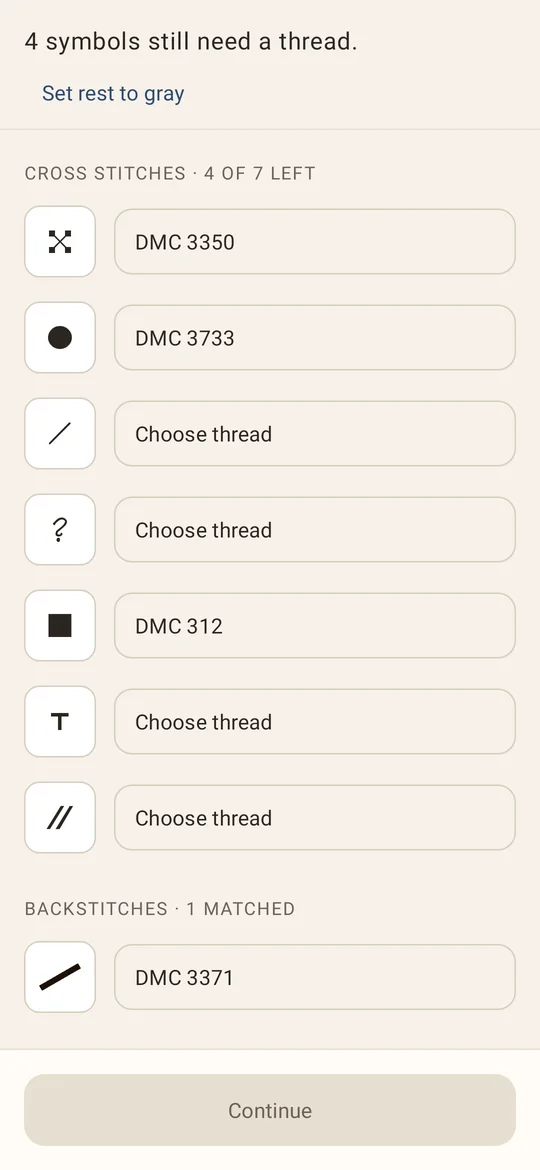
If a symbol in the chart couldn't be tied to a thread from the legend, you'll see Match missing colors, with cross stitches, half stitches, backstitches and knots listed separately.
- Tap Choose thread on a row and pick the floss (search by number or name).
- Set rest to gray gives every unmatched symbol a grey placeholder so you can start now and fix it later.
- Tap Continue, check the preview, and name your project.
4. Find your way around the chart
- Zoom and pan: pinch to zoom, drag to move. The row and column numbers along the top and left edges stay put as you scroll.
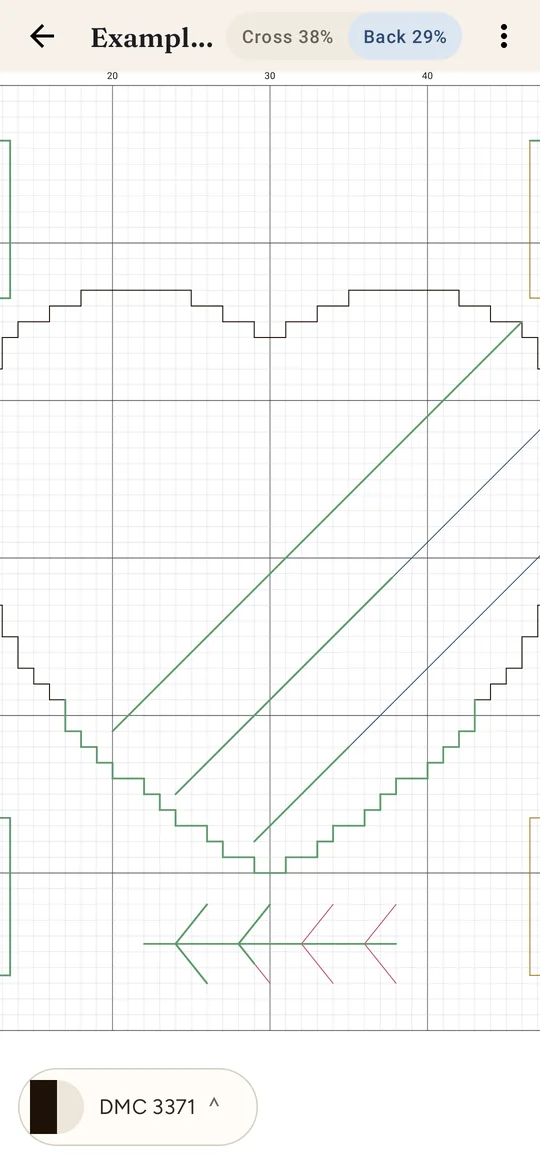
- Tabs: Cross and Back. Cross is full crosses, half stitches and French knots; Back is backstitch. Each tab shows its own progress percentage.
- Tool rail: on the left edge. Choose pan (move around), mark (pencil) or frog (unpick). Marking tools turn on once you zoom in far enough to hit single stitches. Use the move handle to drag the rail out of the way, or lock it in place.
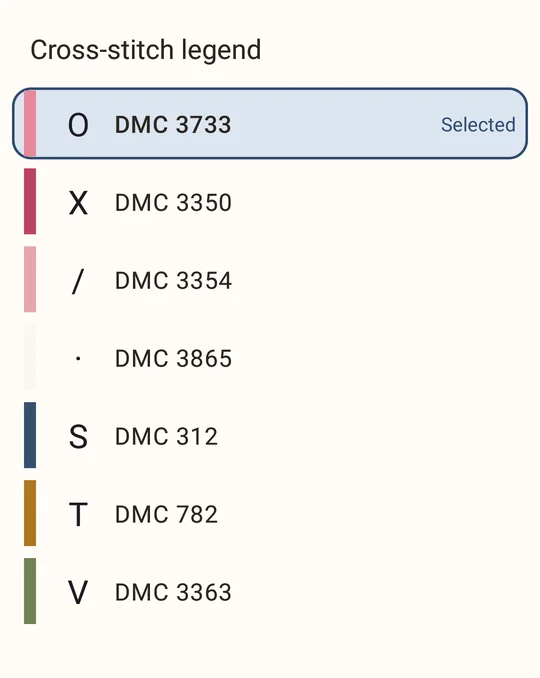
- Symbol and legend: the bar at the bottom shows the selected thread. Tap it to open the legend, then tap a row to select that symbol. On the Cross tab, French knots are listed under Knots. The selected one sits at the top, marked Selected.
5. Mark cross stitches
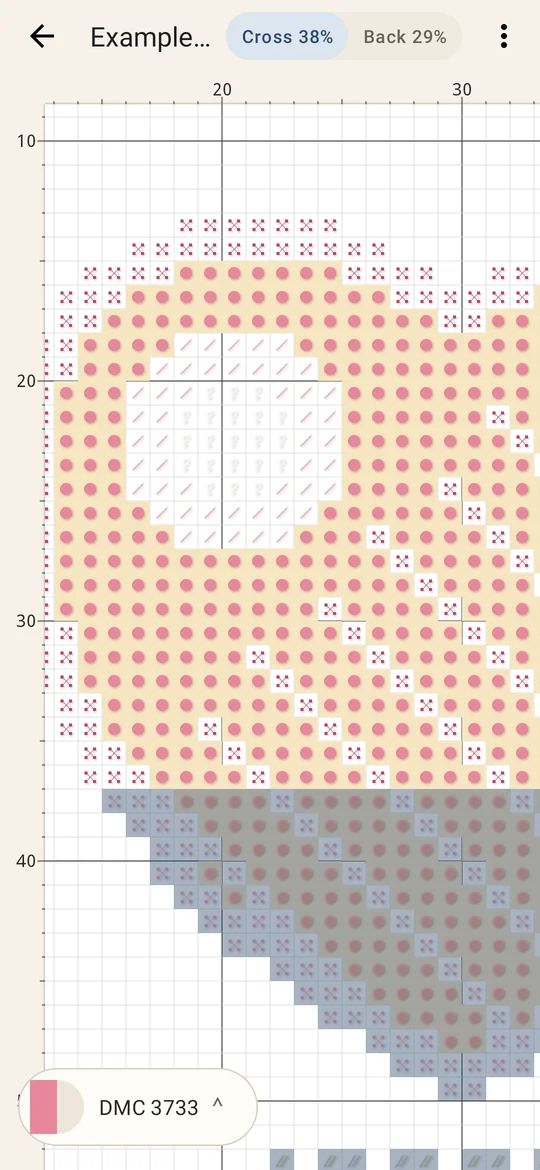
- Select a symbol in the legend. Stitches you haven't done yet are highlighted.
- Pick the pencil, then tap or drag over stitches to mark them done. Pick frog to unmark.
- Use undo for the last change, then save with ✓ (or discard). If you leave with unsaved changes, CrossLine asks first.
6. Half stitches
Half stitches (the ½ stitches on a chart) are on the Cross tab with the full crosses. Each one is a single diagonal of a square, and it counts as half a stitch in that tab's progress. Select its symbol in the legend, then mark or frog it the same way as a full cross. A square split between two threads has a symbol for each half.
7. French knots
French knots are on the Cross tab too, drawn as dots. In the legend they are listed under Knots, after the cross-stitch symbols. Select a knot thread and the dots of that thread are highlighted. The pencil marks those dots, not the whole square; frog removes a mark. Knots count in the Cross tab's progress. Long-press that tab to see how many knots are done, listed apart from the stitches.
8. Backstitch
Switch to the Back tab. Choose a backstitch colour from the Backstitch legend, then use the pencil to trace over the lines you've stitched; frog removes them again. As with cross stitch, zoom in to enable the tools, then save.
9. Done styles and colour
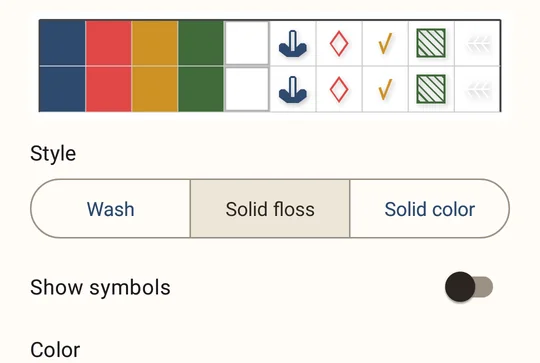
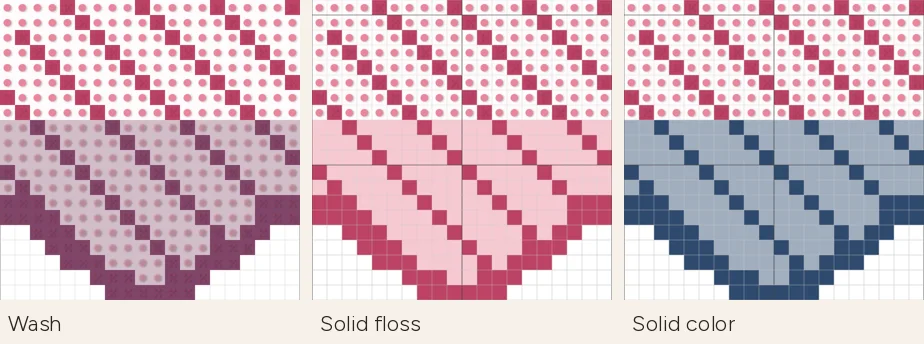
Open the project settings (the button at the bottom left of the chart) and choose Done-stitch color. Under Style:
- Wash: a light veil over finished stitches (default).
- Solid floss: each finished stitch filled with its own thread colour, so the picture builds up as you go.
- Solid color: every finished stitch in one colour.
Turn Show symbols on or off, and choose the Color (Sage, Slate, Rose, Charcoal or your own). The same styles cover half stitches and French knots. Each project keeps its own setting.
10. Pick up where you left off
Each project remembers the tab you were on, your zoom and position on the chart, and the selected symbol, French knot or backstitch colour, so reopening it puts you right back where you stopped.
11. Manage projects
On Projects, sort with Recently stitched, Name, Progress or Date added. Long-press a project for Download PDF (saves the original chart to Downloads), Reset progress, Import Pattern Keeper progress… and Delete project.
12. Import Pattern Keeper progress
- In Pattern Keeper, export the chart's progress and get the file onto your phone.
- In CrossLine, import the same chart as a project first. Then long-press it and choose Import Pattern Keeper progress… and pick the file.
- CrossLine shows the stitches marked in Pattern Keeper, in CrossLine now, and after import. Choose Add to my progress or Replace my progress.
The file must be for the same chart. If an email app mangled the file, zip the export and send that instead.
13. Language
CrossLine follows your phone's language. To choose another, open the ⋮ menu on Projects and tap Language; System default goes back to the phone's setting. On Android 13 and later you can also set it in the system settings under App languages. Available: English, Deutsch, Español (Latinoamérica), Français, Italiano, Nederlands.
14. Trial, unlock and restore
CrossLine is free for 30 days; the chip on Projects shows the days left. After that, Unlock CrossLine is a one-time Google Play purchase ($7 in the US; Play shows your local price). There's no subscription, and your projects stay on the phone either way.
New phone or reinstall? Sign in with the same Google account and tap the days-left chip on Projects, then Restore purchase.